≈ 2 mins de leitura
Step-by-Step Instructions
- Open a web browser and go to "www.uc.pt".
- Choose the "Login" option in the top right corner.
- Log in to your account using your email address and password.
- Click on your profile picture to access your institutional applications menu.
- Pick the "Webmail" option.
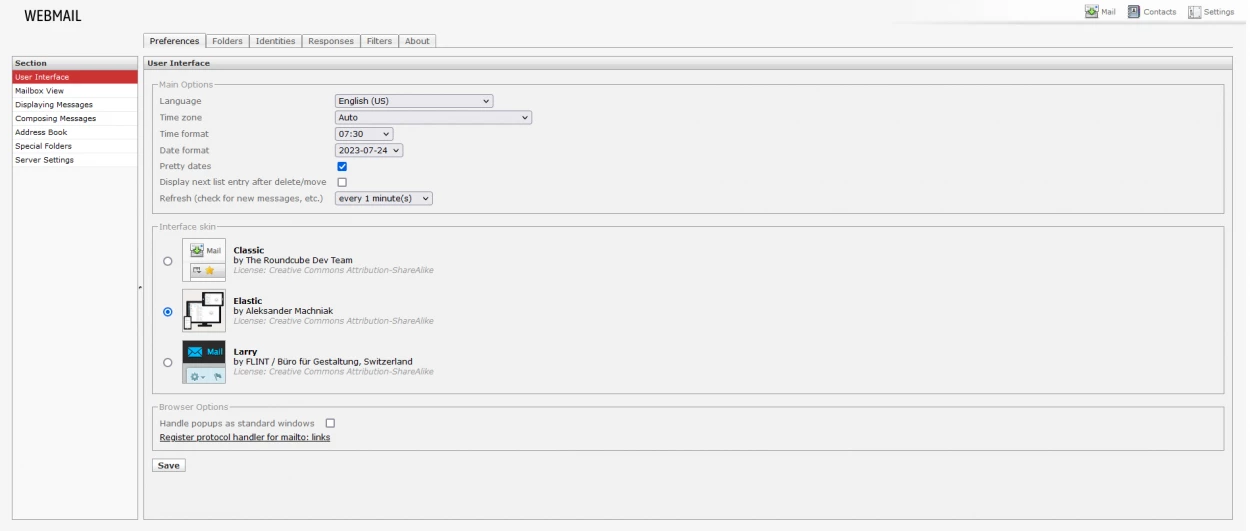
- Locate and click on the "Settings" button in the top right corner of the screen.
- In the settings menu, click on the "Preferences" tab.
- Look for the "User Interface" section, and under it, you will see an area labeled "Skin".
- Select "Elastic" from the list of available themes.
- After selecting the "Elastic" theme, click on the "Save" button at the bottom of the page to save your changes.
- You should now see the new "Elastic" theme applied to your interface.
Image of User Interface Preferences