


Submitting for publication
Having the right to publish depends on your role in Silva. If you are an Author, you may request approval of your content and the responsible Editor will review it and publish it or inform you why it is not published.
As an Author there are three ways to submit a request for approval for your work.
You can request approval for:
- a single document
- for a folder containing a number of documents
- for a publication containing many folders
Approval for a single document
- Navigate to the document you wish to submit to an editor for publication.
- Click on the publish tab in the top navigation bar of the Silva management area. This will take you to the publication status screen. (Fig. 1.)
- Fill in the request for approval form.
- You can request that the document be published for a specific date range by filling in the content publish time and the expiration time. If your content is approved, it will become publicly visible only within the time frame specified. (Fig. 1.) Setting content publish time and expiration time is optional.
- You can add a note to the Editor if you wish.
- Click request approval.
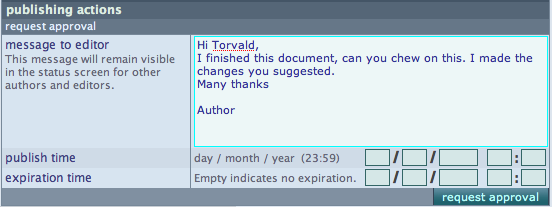
Fig. 1. Submitting your work for publication.
If the Editor approves or rejects your request, you will be notified. At any time in between you can withdraw your request by visiting the document and clicking the revoke approval button (alt-v).
Messaging via email
If your Manager has set up the Email Message Service the messages will also be sent via emaill, including a link to the corresponding location.
When an Author submits a document for approval, the email is sent to the Chief Editor who is assigned to that area of the site. If there are more than one Chief Editor, they all receive an email. It is the Chief Editor’s responsibility to either review the document or delegate the task by forwarding the email to an Editor.
There are several criteria that must be fulfilled before the email messaging will work.
- There must be at least one Chief Editor assigned higher in the content tree.
- Both the Chief Editor and Author must have email addresses entered. Check your user settings make sure you have a known email address.
Note that when using the publish screen of a folder or publication, there is no message field and an automatically generated message is sent to the other party.
Approval for a folder or publication
Navigate to the folder or publication you wish to submit to an editor for publication. Continue using the steps for approval for a single document located above.


